
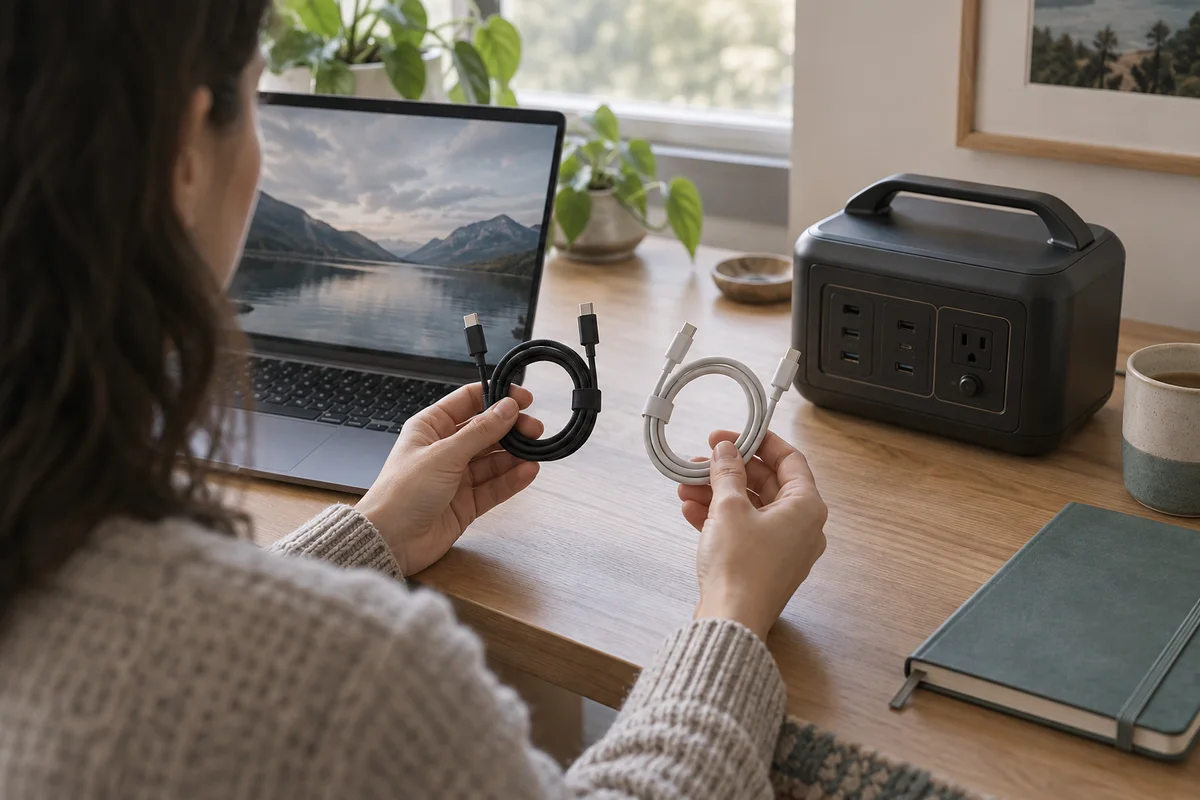
AI-generated scene illustration; not a photograph of the recommended product.
You open a laptop at the kitchen table during a short interruption, connect it to a portable power station, and see a slow-charging message. The cable fits, and the station has a high-wattage USB-C port. Why is the expected charging rate missing?
Before buying the BLUETTI Elite 100 V2 or an extra cable, treat direct USB-C charging as a chain. The station’s individual port, the cable, and the device’s accepted input all matter. The largest number printed beside an outlet is a capability ceiling, not a promise about every laptop or phone.
The short answer
The reviewed Elite 100 V2 manual lists separate 100W and 140W USB-C output ports. They do not have identical published voltage profiles: the 100W port includes 12V/3A, while the 140W port’s listed profiles do not include 12V.
Match the exact device’s charging requirements and an appropriate USB-C cable to the chosen port. A 140W port cannot make a device accept 140W, and a cable marked for high power does not add missing source or device support. We have not measured charging performance.
On this page:
- The short answer
- Read the two port specifications separately
- Check the laptop rather than its old charger alone
- Buy a cable for the power requirement
- Make a three-column compatibility note
- Verify ordinary operation before depending on it
- Compare direct charging with the supported alternative
- Frequently asked questions
- Sources and verification
Read the two port specifications separately
The manual lists the 100W port at 5V/3A, 9V/3A, 12V/3A, 15V/3A, and 20V/5A. Its 140W counterpart lists 5V/3A, 9V/3A, 15V/3A, 20V/5A, and 28V/5A.
That difference matters when a buyer assumes the apparently stronger port contains every option of the other one. Read each row rather than sorting ports by maximum wattage alone. For a device requiring a particular profile, ask its manufacturer about the supported combination instead of guessing from the connector.
The simple arithmetic is voltage multiplied by current: 20V times 5A equals 100W; 28V times 5A equals 140W. These calculations explain the published ceilings. They are not measurements of power delivered to a battery during ordinary use.
Check the laptop rather than its old charger alone
Identify the precise laptop model and the charging-capable input port. Read the manufacturer’s supported charging arrangement, including any restrictions on cables, adapters, or fast charging. A computer can have several USB-C-shaped ports without all of them serving the same role.
The power printed on a bundled wall adapter is useful context, but it does not by itself establish what the laptop will accept from this station. Likewise, a charge indicator only shows that some charging is occurring, not that the intended rate or workload is supported.
Write down whether your task is keeping a nearly full laptop topped up, charging it while asleep, or operating a demanding application. A setup that works for a quiet document session should not automatically be treated as proven for a heavier workload. Avoid buying based on an untested assumption about that difference.
Buy a cable for the power requirement
USB-IF’s cable guidance distinguishes certified power capabilities, including 60W and 240W markings. That gives buyers a more concrete question than whether a cable merely looks thick or is described as premium.
For a high-power arrangement, choose a reputable cable with a documented rating and compatibility appropriate to the device and source. Do not expect a 60W cable to provide the port’s 140W headline capability. Conversely, a 240W-rated cable is not a command for the station or laptop to deliver that amount.
Power capability and data capability are separate purchasing questions. This article does not establish that a charging cable can drive a monitor, transfer files at a particular speed, or replace a display cable for AR glasses. Buy only the features your actual setup needs.
Make a three-column compatibility note
Use a short worksheet with source port, cable, and receiving device. In each column record the exact item and its documented role. Put unresolved requirements in a separate line rather than filling them with the largest advertised figure.
A hypothetical owner might have a laptop documented for an appropriate 65W USB-C arrangement and a suitable cable. That owner should evaluate the supported 65W task, not demand 140W because the station offers it. Another laptop needing a different arrangement requires its own check. These are invented examples, not endorsements of an unidentified laptop.
Keep a photograph of the relevant port labels and the cable packaging for household reference. The point is reducing future mix-ups, not permanently labeling every cable as interchangeable. Replace that note if the equipment changes.
Verify ordinary operation before depending on it
After obtaining a compatible setup, follow both manufacturers’ instructions and check it during an ordinary, non-critical session. Observe the computer’s charging status and any warnings with the intended workload. Do not create a high-demand stress test to prove a marketing claim.
If a warning appears, check the exact port, documented cable rating, and device requirements. Stop using damaged or abnormally behaving equipment and obtain support rather than trying improvised converters. Do not use unsupported trigger adapters to force a voltage.
Our router and laptop power-budget guide addresses a different question: the energy required for the whole work session and the separate internet path. Port compatibility does not establish runtime, internet availability, or suitability for critical equipment.
Compare direct charging with the supported alternative
A manufacturer-approved wall adapter powered through a suitable AC outlet may remain an option when direct USB-C compatibility is unclear. That is not a universal efficiency or compatibility recommendation; the station and adapter must still meet their respective requirements.
Do not buy the station only to avoid carrying one small charger unless that change has real value in your routine. Consider where it will be placed, how it will be recharged, and whether a lighter existing power solution already meets the task.
The Elite 100 V2 buying guide is a starting point for the broader purchase. Check the current partner package and return terms after confirming the exact charging chain. No current price, inventory level, or laptop charging time is claimed here.
Frequently asked questions
Are both Elite 100 V2 USB-C ports rated at 140W?
No. The reviewed manual identifies one 100W port and one 140W port. Read the individual port’s specifications and the delivered unit’s labels.
Is 12V listed for both USB-C ports?
No. The manual lists 12V/3A for the 100W port but not in the 140W port’s published profile list. Do not infer an unlisted profile from its higher maximum.
Does a 240W cable make charging faster?
Not by itself. Its power rating is a capability of the cable, not proof that the source and device support a higher charging rate together.
Can this article confirm compatibility with my laptop?
No. Check the exact laptop’s official requirements, the chosen station port, and the cable. Seek model-specific confirmation where the documentation leaves a gap.
Sources and verification
Checked October 16, 2026. Port profiles come from the Elite 100 V2 manual’s specification table, not a similar BLUETTI model. Examples and worksheets are editorial planning aids.
- BLUETTI official user-guide directory
- Elite 100 V2 manual, specifications
- USB-IF cable power-rating and certification guidance
Keep reading
Related guides
 Power & Outdoors
AC180 and a Corded Leaf Blower
Check outlet protection, dry placement, motor demand and cord routing before considering AC180 for a corded blower during fall cleanup.
Read guide → Power & Outdoors
AC180 Sewing Machine Power Planning
Check the machine's approved power source, foot-controller route, work light and session demand before buying AC180 for a temporary sewing station.
Read guide → Power & Outdoors
Elite 100 V2 and a Portable Monitor
Separate USB-C video, monitor power and laptop charging before buying Elite 100 V2 to support a portable dual-screen workspace.
Read guide →