
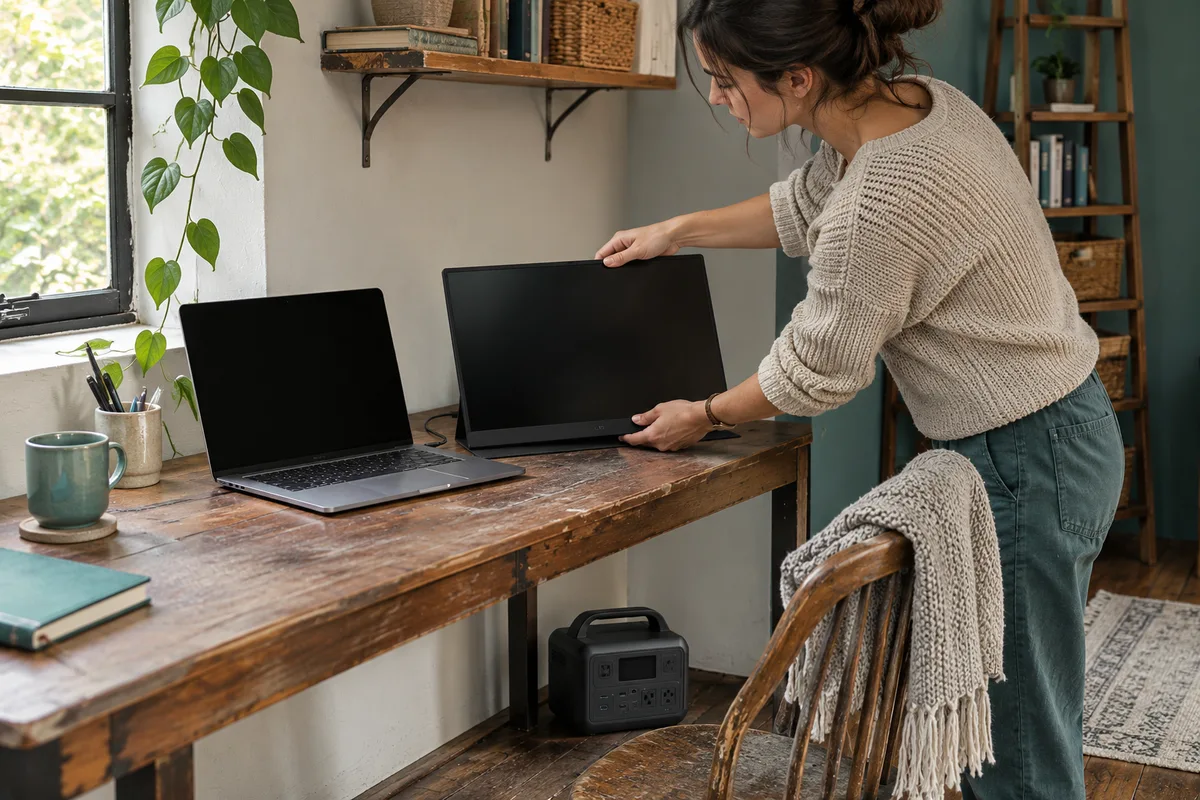
AI-generated scene illustration; not a photograph of the recommended product.
A folding monitor makes a temporary desk feel more useful. At home the screen and laptop work together on one cable. When the desk moves away from an outlet, a second USB-C socket appears to offer a shortcut: connect the monitor to a power station instead. But the old cable might have been carrying two jobs at once.
The short answer
The BLUETTI Elite 100 V2 can be evaluated as a power source. It is not a source of laptop video. A portable monitor needs both power and a video path supported by the exact monitor and computer. Draw those paths separately before assuming a USB-C power outlet can replace a computer’s display connection.
A second screen is optional during a short interruption. First decide whether it does enough work to justify its power, cable and desk footprint. If a compact laptop session meets the need, a larger backup setup can wait.
Contents
- The short answer
- Trace the picture
- Trace the electricity
- Compare two supported layouts
- Write a desk card
- Budget the work session
- Buying advice
- Frequently asked questions
- Sources and verification
Trace the picture
Start at the computer port named in its documentation. Trace the video from there, through the actual cable or adapter, into the selected monitor input. Do not start at whichever plug fits the monitor’s edge. USB-C describes a connector form and does not say that every port carries a display signal.
Dell’s support note names several portable models that need a compatible video-capable USB-C host when used on that input. It distinguishes DisplayPort Alternate Mode or a suitable Thunderbolt connection from ports limited to data or power. The note does not specify every brand’s wiring or mean that every Thunderbolt port, cable and display configuration is interchangeable.
If the monitor has a documented alternative input, check it on its own terms. The fact that another version accepts HDMI does not establish that the selected portable screen has an HDMI input or that any direction of adapter will work.
Trace the electricity
Write down which device normally powers the display. In a supported single-cable setup, the laptop may power the monitor while also supplying video. In a different supported setup, the monitor has a separate power input or adapter. Do not combine supplies unless that arrangement is described by the monitor and computer documentation.
The Elite 100 V2 product page lists a 1,024Wh station and separate output types. The presence of USB-C and AC outputs offers choices for a confirmed power connection, not a way to synthesize a display signal. The power port does not become a display hub when a monitor is plugged in.
Our USB-C charging guide handles the separate question of choosing a charging profile and cable. That decision follows after you know which equipment draws power and which connection must carry the picture.
Compare two supported layouts
With a supported single display cable, you may be able to keep the same laptop-to-screen connection and power the laptop through an approved input. Check whether the laptop can support the screen and intended workload in that arrangement. A cable that produces a picture is not evidence that the laptop will maintain its battery level.
With independent monitor power and video, you may keep video on the laptop and supply the monitor by its documented method. That adds a cable but can make the two jobs easier to diagnose. Avoid improvised splitters or trying to join station, monitor and laptop on one cable that was not designed for that topology.
Before buying any power equipment, establish the screen configuration on the existing supported supply. If video does not work there, fix the display path first. A bigger battery will not make an incompatible display port output an image.
Write a desk card
| Line | What to document |
|---|---|
| Video source | Exact computer and display-capable port |
| Video path | Supported cable and monitor input |
| Monitor power | Supported input or supplied adapter |
| Laptop power | Approved charger and accepting port |
| Desk setup | Stable screen stand and strain-free cables |
| Reserve | Essential tasks to keep if the screen is removed |
Mark the actual cable at each end in a private setup note. Two cables can look alike while doing different work. If you keep a travel pouch, store the known working display cable separately from the cable used only for charging accessories.
Test the normal layout while at the desk, with the screen stand secure and cables clear of the exit path. Do not leave the station where a chair can trap its cord or where the owner’s guide forbids placement. A laptop and screen can both be portable even when their useful arrangement still needs a proper surface.
Budget the work session
If the monitor receives power through the laptop, count that energy at the upstream supply once. If it uses an independent adapter, include that as a separate load. Measure ordinary use only with suitable equipment if you need a useful estimate; the total on the product label is not a runtime observation.
Choose a fallback before you commit. A writer who needs one reference page might use a split view on the laptop; someone comparing many records may value the second display enough to keep it. For an outage scenario, internet availability is another independent requirement, not something the external screen or station establishes.
Keep the boot sequence with the desk card if a particular monitor requires one. The useful record says which supported input is selected and which device feeds it, not just that both plugs are connected. If the monitor shows no signal on a known working power source, review the host and cable documentation rather than cycling the station’s ports. If the screen never powers on, investigate its approved power input first.
Buying advice
Consider Elite 100 V2 when the full supported power arrangement serves a repeat task and the separate video path already works. If one screen, an existing charger or a smaller confirmed supply does the job, delay the larger purchase. BLUETTI’s direct store showed a future dispatch date on November 5; independently check the selected partner seller’s exact package and delivery.
The Elite 100 V2 overview describes the broader station purchase. We did not test a monitor on this station or verify the operation of any particular display chain.
Frequently asked questions
Does the station’s USB-C port transmit a laptop picture?
No video role is established for the station’s charging output. Keep the picture connected to a supported source.
Can a high-power USB-C cable solve missing video?
Not by its power rating. The host, cable, input and chosen display method must all support the video connection.
Should I count a laptop-powered monitor twice?
No. Account for the actual upstream load without also adding the same downstream power as a separate draw.
Does a working image prove the laptop is charging?
No. Check the supported power arrangement and ordinary battery behavior separately.
Sources and verification
Checked November 5, 2026. Dell’s guidance is scoped to its named models and display standards. This is a connection-planning guide, not a runtime or interoperability test.
- BLUETTI Elite 100 V2 official specifications
- Dell portable monitor USB-C video troubleshooting
- Dell guide to DisplayPort over USB-C
Keep reading
Related guides
 Power & Outdoors
AC180 and a Corded Leaf Blower
Check outlet protection, dry placement, motor demand and cord routing before considering AC180 for a corded blower during fall cleanup.
Read guide → Power & Outdoors
AC180 Sewing Machine Power Planning
Check the machine's approved power source, foot-controller route, work light and session demand before buying AC180 for a temporary sewing station.
Read guide → Power & Outdoors
AC180 Dehumidifier Backup
Assess AC180 dehumidifier backup through compressor demand, room conditions, drainage and a defined moisture-control task before buying a station.
Read guide →