
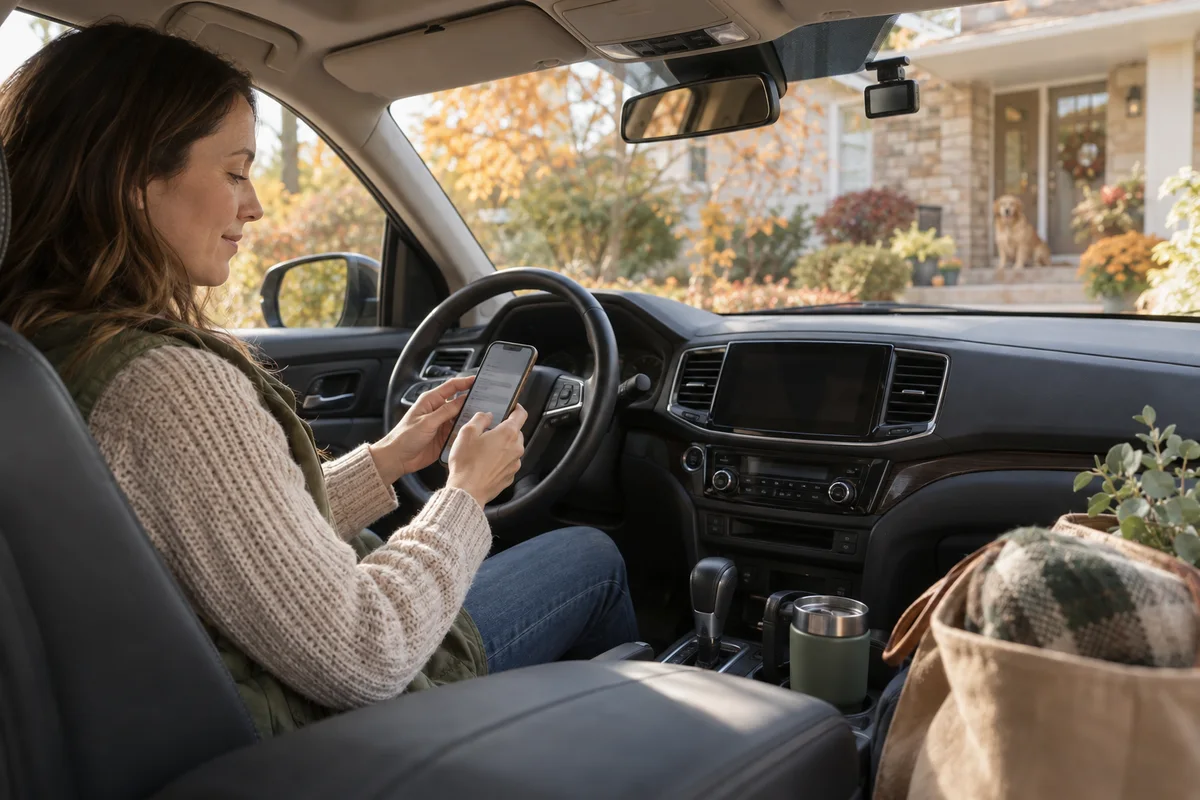
AI-generated scene illustration; not a photograph of the recommended product.
You sit in the driveway to retrieve a short clip, connect the phone to the dash camera, and immediately see “No internet.” The natural reaction is to reconnect to something else. Unfortunately, that can remove the connection you needed to reach the recording.
With a VIOFO A229 Plus, local camera access and internet access are different tasks. Understanding that difference before buying is especially useful if the same phone normally runs wireless CarPlay or Android Auto.
The short answer
The camera’s Wi-Fi is a local connection between the dash cam and phone; it is not a home broadband service or proof of cloud backup. A phone warning about missing internet can therefore be expected while using that local connection.
VIOFO also identifies possible conflicts with wireless CarPlay and Android Auto. Plan a parked handover: connect for the camera task, finish and verify the file, then restore your ordinary phone-to-car arrangement before the next drive.
Understand what each connection is doing
Think of the camera’s network as a small room with the recordings inside. Joining it lets the phone reach the camera. It does not mean that the room has a doorway to the wider internet.
The phone may also be accustomed to another job: navigation through the car, ordinary internet browsing, or a known home network within range of the driveway. Those competing uses explain why a connection that seems simple in a product video can require more attention in your actual car.
Do not mistake this for a defect without checking the intended operation. Conversely, do not accept “it has Wi-Fi” as an answer if your real requirement is remote access while you are away from the vehicle.
Define the parked task first
There are several reasons to open a dash-cam app: reviewing a recording, changing a setting, checking the view, or copying a file. Choose one before you start. Otherwise it is easy to spend ten minutes switching networks while forgetting what you needed to preserve.
If an important recording is involved, do not format the card or experiment with maintenance while looking for it. Use the separate save-before-formatting guide to keep file preservation distinct from connection troubleshooting.
For a routine settings check, write down the setting you intend to inspect. Do not change several unrelated controls just because the menu is open.
Make a phone handover that you can repeat
Perform app work only when safely parked. Keep attention on the connection rather than attempting adjustments while driving. The exact controls and permission names vary with the phone, operating system, and app version, so use the current manufacturer instructions.
A practical sequence is:
- Establish that you are parked and have time for the task.
- Identify the camera’s local network using its supplied instructions.
- Connect and open the official app with the appropriate permissions.
- Complete the specific review or transfer.
- Verify the result before leaving that connection.
- Restore the phone arrangement you normally use with the car.
This is a workflow, not a universal button-by-button setup. If your vehicle handles wireless projection differently, consult its own documentation rather than forcing a procedure from another car.
Do not weaken phone security to solve a convenience problem
Avoid broad fixes such as disabling security software, removing protections, or sharing passwords with a troubleshooting stranger. A connection problem is not a reason to make the rest of the phone less secure.
Start with the documented local-network permissions and the correct camera connection. If the phone keeps choosing an internet-capable network, inspect the relevant official guidance for that phone. Do not blindly change every network preference.
When the current phone-and-car combination remains awkward, a compatible card reader may be a more practical way to retrieve files. Confirm the phone or computer’s actual reader support and power the camera down before card handling, following its manual.
Verify a copied clip outside the camera connection
A transfer indicator is useful, but the real question is whether the intended file is available where you expect it. Open the copied clip from its saved location and confirm that it is the right recording.
Check any relevant front and rear files separately rather than assuming a single download contains every view. Review the actual file names and content. Keep private material private; a troubleshooting request does not automatically require uploading the full recording.
Only after verifying the copy should you move on to the intended next action. If preserving evidence matters, keep the original media and obtain appropriate guidance rather than treating this convenience workflow as a forensic procedure.
Consider a shared-car handover
A second driver may use a different phone, another app version, or a different projection setup. The first driver’s successful connection does not establish that everyone else can use the same routine.
Agree on who maintains camera access and where ordinary exported files belong. Avoid leaving recordings in an unclear shared cloud folder simply because it was the phone’s default destination.
The shared-car audio guide covers a separate issue: what the camera records. Network access, recording scope, and permission to share clips should not be collapsed into one vague “camera setup” decision.
What to check before buying the A229 Plus
The A229 Plus review covers the broader camera choice. Add these questions if convenient phone access is central to your purchase:
- Will you accept a deliberate local connection rather than always-on internet access?
- Does your phone’s current operating system support the official app?
- How does your vehicle manage wireless phone projection?
- Is a documented card-reader route available if needed?
- Can every regular driver follow the parked workflow?
- Have you checked the seller’s return and support arrangements?
Do not buy on the assumption that one wireless feature supplies every other wireless feature. Camera access, mobile data, remote connectivity, and vehicle projection are distinct capabilities.
Buying tradeoffs
The A229 Plus can make sense when local phone review is acceptable and you are willing to manage the handover. It is less suitable if the purchase depends on effortless simultaneous operation of every wireless feature without checking the specific phone and vehicle.
Someone who rarely retrieves footage may accept a card-reader routine. Someone who reviews clips frequently may value a smoother demonstrated workflow more highly. That difference is a genuine ownership consideration, not a reason to invent transfer-speed rankings.
No phone, car, or transfer-speed test is claimed in this guide. Use the seller’s return period and official support to resolve compatibility questions with your actual equipment.
Frequently asked questions
Does “No internet” prove the camera is broken?
No. The local camera network is not intended to provide ordinary internet service. Check whether the app can perform its documented local task.
Does Wi-Fi mean my clips are already backed up?
No. Do not assume a remote backup exists. Verify an actual saved copy before relying on it.
Can I assume wireless CarPlay works simultaneously?
No. VIOFO flags possible conflicts. Check your particular phone and car, and plan the handover while parked.
Should I keep reconnecting while driving?
No. Leave app and connection work for a safe parked situation. Recording use and phone administration should be separate activities.
Sources and verification
Checked October 15, 2026. No universal phone compatibility or cloud service is promised.
- VIOFO FAQ — local Wi-Fi and wireless projection limitations.
- VIOFO: How to use the app — local connection behavior and phone setup context.
Keep reading
Related guides
 Garage & Workshop
A229 Plus Ownership Handover
Plan an A229 Plus sale or gift around personal memory media, settings review, included parts and the new owner's recording setup.
Read guide → Garage & Workshop
A329S vs Tesla Dashcam
Compare A329S with the Tesla recording functions your car actually has before adding a second camera system, storage route and installation.
Read guide → Garage & Workshop
A229 Plus vs A329S
Compare A229 Plus and A329S for a front-and-rear household setup, including resolution, storage effort, installation and the complete purchase basket.
Read guide →