

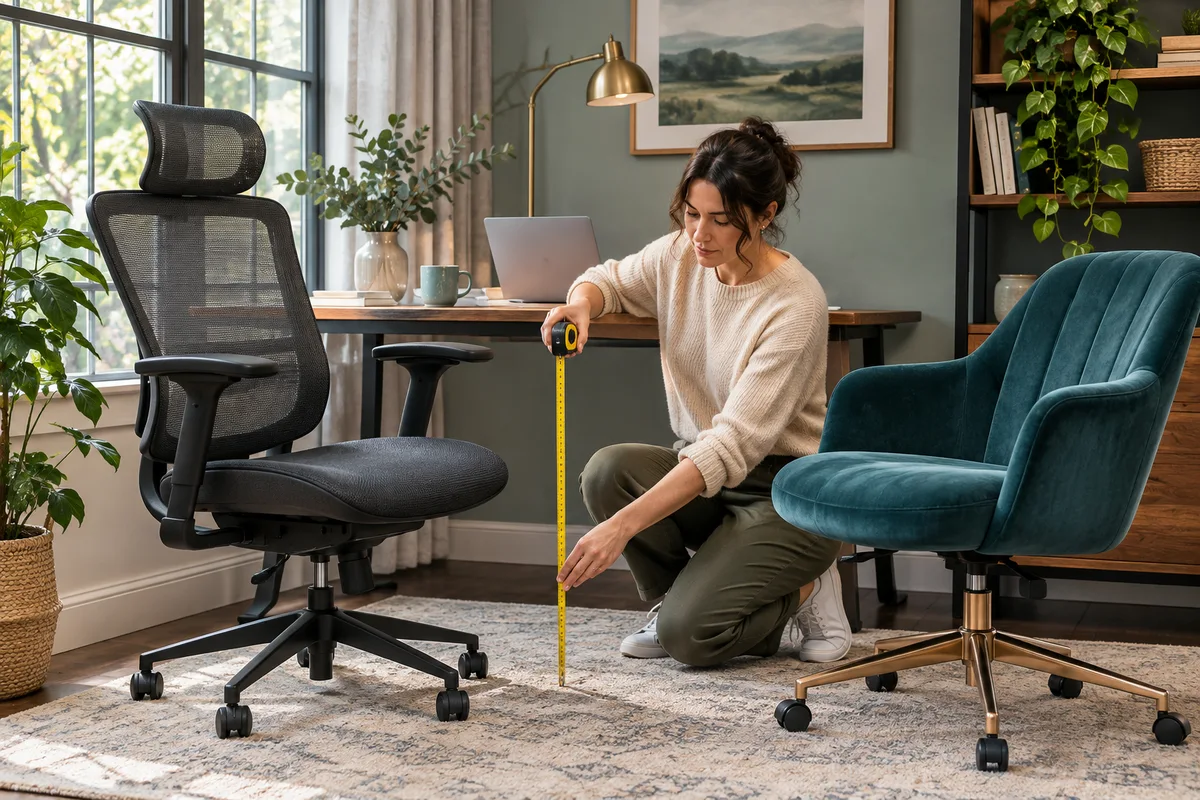
AI-generated scene illustration; not a photograph of the recommended product.
The home office finally has a bigger screen. Its top sits at eye level, just as a setup diagram suggested, but the person wearing bifocals keeps lifting their chin to read a spreadsheet. Another chair is on the shopping list. Before ordering, check whether the real constraint is the screen’s position relative to the usable part of the glasses.
The short answer
Do not choose a ProtoArc EC300 solely to raise yourself toward a monitor. First check readable screen position with the glasses you actually use. OSHA’s monitor guidance specifically discusses a lower display position for bifocal users; a generic eye-level rule is not an individual prescription. Then check seating, foot support, keyboard reach and desk clearance together.
Consider EC300 if a seating problem remains and its confirmed adjustments fit that whole arrangement. If moving the monitor solves the problem with your current chair, keep the chair. This is workstation purchase planning, not eye-care advice or a promise of relief from symptoms.
Contents
- The short answer
- Identify the viewing task
- Try the monitor before changing the seat
- Reconnect the viewing position to the desk
- Compare the existing chair with EC300
- Keep a viewing and seating record
- Buying advice
- Frequently asked questions
- Sources and verification
Identify the viewing task
Use an ordinary page you work with, not a promotional photograph of a tidy desk. A spreadsheet, a video call and a printed invoice create different looking distances and directions. Note which task occupies most of the session and which screen area must stay readable.
Record the glasses normally worn at the desk without assuming that every multifocal design behaves identically. The important observation is whether reading requires a repeated compensating movement. Do not self-diagnose the lenses or change a prescription based on an office-furniture article. A qualified eye-care professional can assess vision needs when the existing arrangement remains unsuitable.
Notice whether the problem occurs with one screen, a second screen or paper placed flat on the desk. If only the secondary display is awkward, changing the entire seat height can disturb an otherwise usable primary task. Identify the specific mismatch before attaching a purchase to it.
Try the monitor before changing the seat
OSHA’s monitor guidance explains that bifocal users may tilt their heads back to view a screen through the lower portion of the lens. Its options include a lower monitor position and, where appropriate, discussing computer-work lenses. Those are general possibilities, not a requirement that everyone buy another accessory or another pair of glasses.
Use the monitor’s approved stand adjustments. If it is sitting on an unnecessary riser, see whether removing that riser through the equipment’s normal setup procedure provides a useful position. Avoid unstable stacks or a stand that cannot support the display. A screen being lower does not make every improvised support safe.
Try ordinary text scaling too. Enlarging text can address a readability requirement without pulling the whole display so close that it crowds the keyboard. Change one thing at a time so you know whether height, distance or text presentation made the difference. Keep cables slack enough for the supported movement.
Reconnect the viewing position to the desk
Once a practical screen position is identified, check the seated arrangement again. Feet, seat support, input devices and the underside of the desk still matter. Raising a chair to change the viewing angle can leave feet unsupported or thighs too close to the desk frame. Lowering it can make the keyboard awkward to reach.
Do not treat a headrest as a way to force the head into a prescribed viewing angle. It is a chair component with its own fit requirements. Our EC300 headrest guide addresses its movement and locking separately; neither adjustment certifies that a monitor is well positioned.
For two screens, decide which is primary. OSHA’s evaluation checklist distinguishes a primary screen in front from an equally used pair. Arrange the actual task rather than centering the chair on an aesthetically symmetrical setup that makes you look sideways most of the time. We have not measured an ideal angle for your room.
Compare the existing chair with EC300
The EC300 product page describes adjustable seating features. Confirm the selected version and applicable instructions. The separate EC300 adjustment FAQ explains height and seat controls; it is a better starting point than assuming a lever behaves like the one on an unrelated chair.
Evaluate the current chair first using the same screen position. If it provides usable seating and approach, a more adjustable replacement may add little. If the current chair cannot fit the working arrangement, record exactly what fails: foot support, seat depth, arm clearance or another seating requirement. Compare that specific requirement with the EC300 rather than counting adjustment labels.
Our laptop stand and keyboard guide solves a different problem: separating a laptop display from its attached keys. This guide starts with a display whose position must work with the user’s glasses. Buying an external keyboard alone does not settle that viewing relationship.
Keep a viewing and seating record
| Item | Record before ordering |
|---|---|
| Main task | The page or application normally used |
| Viewing arrangement | Glasses worn, screen position and readable text size |
| Seating | Foot support and usable seat position |
| Approach | Keyboard reach and clearance under the desk |
| Remaining mismatch | The specific issue not solved by screen adjustment |
| Purchase condition | Exact chair version, return terms and delivery needs |
Use this record to keep comparisons fair. Trying a new chair with a different monitor position tells you about the combined change, not just the chair. If you move the monitor again after delivery, repeat the ordinary task check before concluding that the seat succeeded or failed.
Do not turn a short personal check into a medical test. Persistent discomfort, vision changes or difficulty reading deserve appropriate professional attention. An advertised ergonomic label does not answer those questions, and this article does not establish a treatment outcome.
Buying advice
Consider EC300 when its actual fit addresses a clearly identified seating limitation after display placement has been checked. Review our EC300 buying guide for the broader purchase and confirm the real seller’s version, included parts and return process. A brand page is not proof that every seller offers identical terms.
Skip the purchase when the only justification is matching a generic eye-level diagram. A supported monitor adjustment may be enough. If the desk cannot accommodate a readable screen and workable input position, compare work-surface changes before spending on additional chair adjustments. Keep the purchase proportional to the constraint you can actually identify.
Frequently asked questions
Must the screen top always sit at eye level?
No single diagram establishes individual fit. OSHA discusses a lower position for bifocal users. Check actual readability and seek qualified guidance when needed.
Can EC300 change the focusing properties of my glasses?
No. Chair adjustments change seating geometry, not the optical properties of lenses.
Should I raise the chair until the screen becomes readable?
Not without checking foot support, input reach and desk clearance. The display and chair need to work as one arrangement.
Does this prove EC300 prevents neck or eye problems?
No. We have reviewed documentation, not tested health outcomes or prescribed an individual workstation.
Sources and verification
Checked November 18, 2026. Manufacturer controls and general workstation guidance were reviewed; no personal fitting or clinical evaluation was performed.
- ProtoArc EC300 product information
- ProtoArc EC300 adjustment FAQ
- OSHA monitor placement and bifocal considerations
- OSHA workstation evaluation checklist
Keep reading
Related guides
 Home Office
ProtoArc EC200 vs EC300: Choose by Fit
Compare the EC200 and EC300 by seat fit, back support position and actual desk clearance rather than buying the chair with more controls.
Read guide → Home Office
EC300 Laptop Stand and Keyboard Layout
Set screen height, keyboard reach and chair clearance independently before buying an EC300 for a compact laptop-based home office.
Read guide → Home Office
EC200 Sim Racing Seat Limits
Compare EC200 office seating with a sim-racing setup through pedal reaction, rolling movement and explicitly supported equipment arrangements.
Read guide →