
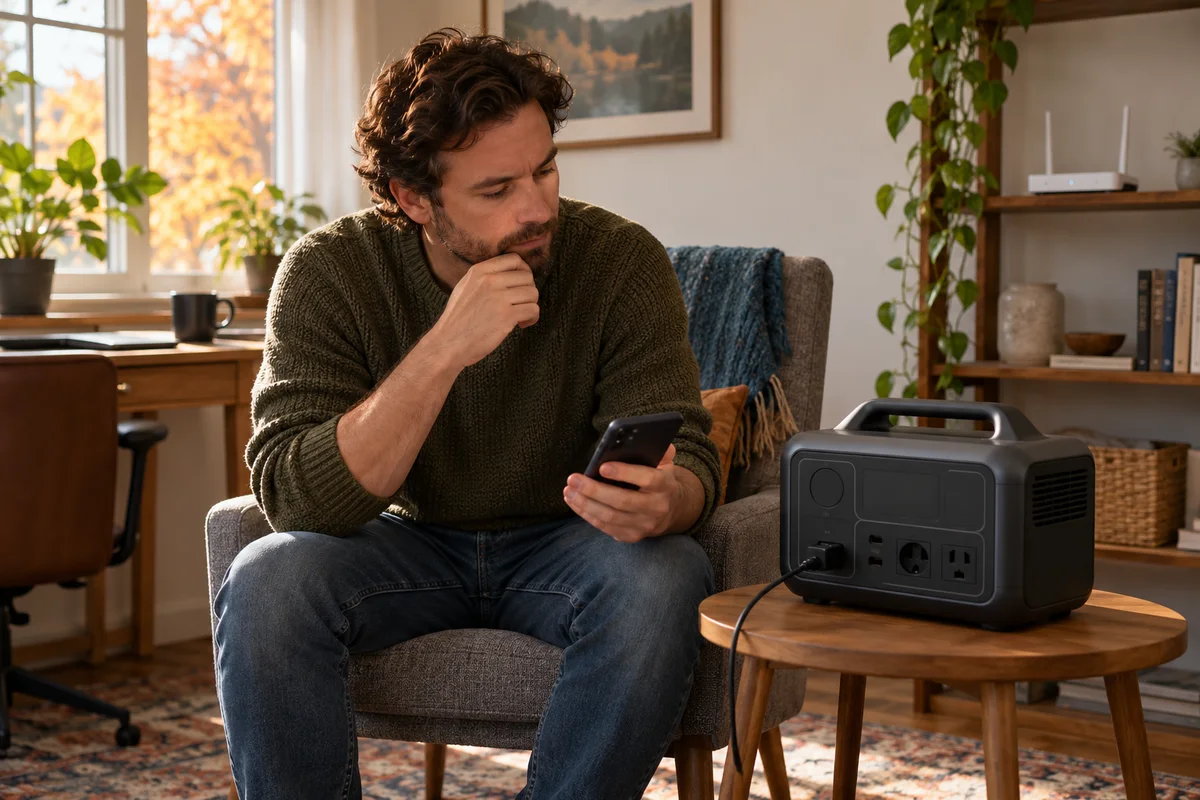
AI-generated scene illustration; not a photograph of the recommended product.
Your household battery is charged, but the phone app will not refresh after the router loses power. It is tempting to conclude that the station has failed. In fact, stored energy, local control, home networking, and internet access are separate parts of the setup.
Before buying an Elite 100 V2 for app convenience, decide which controls must remain usable when a network component disappears. A working connection on an ordinary afternoon is not a complete outage plan.
The short answer
BLUETTI lists both Wi-Fi and Bluetooth connectivity for Elite 100 V2. Its US manual documents Bluetooth connection in the app and physical settings controls on the unit, while reserving some advanced settings for the app.
Do not assume internet-based remote access remains available when the router or upstream service fails. Learn the supported nearby connection and onboard controls before an outage. We have not tested offline login, reconnection, notification delivery, or every app version.
Contents
- The short answer
- Map the control path
- Identify controls that do not start with the phone
- Prepare the nearby app route in advance
- Make a control-dependency table
- Distinguish router power from internet availability
- Plan a safe acceptance check
- Keep firmware work outside the emergency routine
- Compare convenience with dependence
- Frequently asked questions
- Sources and verification
Map the control path
Write the everyday arrangement as separate components: phone, app and account, station, home router, and internet service. Then mark which component each desired action depends on.
Checking a nearby station through Bluetooth is not the same path as reaching it while away from home. Likewise, a router still broadcasting its network name does not establish that its internet connection works.
This distinction helps you describe a failure accurately. “The phone cannot reach the station from outside the house” is different from “the station has no output.” Avoid changing electrical settings while troubleshooting an unrelated network symptom.
Identify controls that do not start with the phone
Read the supplied manual while the station is easily accessible. Identify its power and output controls and the status information available on the display. Know where to find the current model instructions without needing an app screen to load.
The manual describes settings available through unit buttons, including separate Bluetooth and Wi-Fi settings. It also directs users to the app for advanced functions. Do not assume every app control has an equivalent physical shortcut.
Make a short distinction between “available on the unit,” “requires the app,” and “not yet verified.” This is a usability checklist, not permission to change frequency or operating modes casually. Leave unfamiliar electrical settings alone.
Prepare the nearby app route in advance
Install the official app, complete the documented account and device-binding process, and identify the connection method for the actual Elite 100 V2. The manual’s appendix shows selecting Bluetooth from the device page.
Review phone permissions through normal operating-system controls. Use only the permissions and setup the current official instructions require. Do not install unofficial builds or weaken a managed phone’s security to obtain a connection.
Complete this work with ordinary power and connectivity available. First-time account creation, forgotten credentials, or a required download is an avoidable obstacle during an outage. This preparation does not prove that every future app session will function without internet access.
Make a control-dependency table
| Desired action | Check before relying on it |
|---|---|
| See basic station status | What the onboard display shows |
| Operate a supported output | Which physical control the manual specifies |
| Use the nearby app | Bluetooth selection, permissions and current app behavior |
| Reach the station while away | Wi-Fi setup, router power, internet and supported service |
| Receive a notification | App/account permissions and the complete delivery path |
Treat unresolved functions as unavailable for planning purposes. A marketing phrase such as remote control should not substitute for a verified path.
Keep the plan modest. You do not need to design a second home network merely to avoid walking to a station in the next room.
Distinguish router power from internet availability
Backing up a router can help keep part of the home network running. It does not guarantee service from an upstream modem, optical terminal, provider infrastructure, or another required component.
List the actual household equipment before budgeting energy. A combined gateway differs from a separate router, modem, and optical terminal. Do not borrow another household’s runtime figure simply because the router looks similar.
Our router and laptop outage budget addresses energy demand. This article addresses the different question of reaching controls. A larger energy reserve cannot repair an unavailable service path.
Plan a safe acceptance check
Within the manufacturer’s instructions, verify the controls you intend to use under ordinary, noncritical conditions. Record the current phone, app version, station firmware, connection method, and what actually worked.
For a nearby connection check, distinguish selecting Bluetooth from merely seeing a remembered device in an online account. If you evaluate a router-off scenario, do it only where interrupting that router will not disrupt essential equipment, security systems, or someone else’s work.
Do not unplug life-support equipment or interrupt critical computing to test a battery. Do not use a successful app connection as evidence that those loads have suitable backup protection.
Keep firmware work outside the emergency routine
The manual’s update guidance calls for maintained power and connection and warns against leaving the app before completion. Use the current instructions for the exact model, with time to resolve issues.
An unexpected update prompt during an outage is not a reason to begin an optional update immediately. First establish the present safe operating state and consult official guidance.
Save current instructions locally where practical. A printed or downloaded control reference can be more useful than a bookmark that depends on the same failed internet service. Avoid keeping account passwords on a publicly visible household card.
Compare convenience with dependence
Elite 100 V2 deserves consideration when the supported controls match your routine and the battery’s separate power requirements also pass. App convenience can be valuable for checking an accessible household system without repeatedly approaching it.
It is a weaker fit if the purchase assumes guaranteed remote alerts, guaranteed internet-independent access to every advanced feature, or unattended critical operation that has not been established.
For sensitive equipment, read our UPS restriction guide before relying on promotional continuity claims. Network access does not change the manual’s load restrictions.
Frequently asked questions
Does Elite 100 V2 support Bluetooth as well as Wi-Fi?
BLUETTI’s product information lists both. Check the current exact model and supported app process.
Will powering the router guarantee remote app access?
No. Internet service, other network equipment, account services, and the supported connection path can still matter.
Can I assume every setting is available on the unit?
No. The manual reserves some advanced settings for the app. Identify the functions you actually need.
Have you verified fully offline app behavior?
No. This guide documents published connection options and a purchase checklist, not an offline reliability test.
Sources and verification
Checked October 19, 2026. No network-range, offline-access, app-reliability, or backup-continuity test is claimed.
- Elite 100 V2 official connectivity and product information
- Elite 100 V2 US manual: settings and Bluetooth app connection
Keep reading
Related guides
 Power & Outdoors
AC180 Home Backup: Keep Power Out of Wall Outlets
Separate directly powered appliances from household wiring before buying an AC180 for outages; rule out backfeeding and plan the right system.
Read guide → Power & Outdoors
AC180 and B80: Check the Expansion Path First
Compare B80 power-bank feeding with native modular expansion before buying an AC180 system for a longer energy reserve.
Read guide → Power & Outdoors
Elite 100 V2 UPS: Read the Sensitive-Load Restriction
Separate a published switching time from high-performance UPS suitability before buying backup power for data-sensitive equipment.
Read guide →